How to Clean Laptop Screen Safely: Complete UK Guide 2026

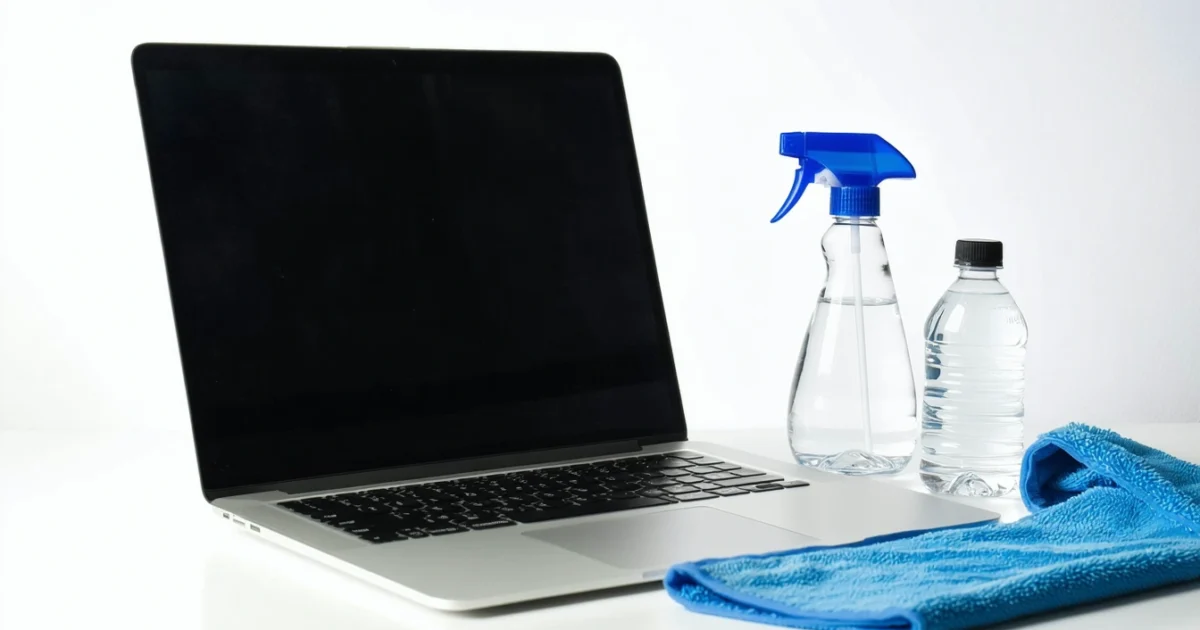
How to clean laptop screen properly requires just a microfibre cloth and distilled water to remove fingerprints, dust, and smudges without damaging your display. Most laptop screens are delicate LCD or LED panels that can be permanently damaged by household cleaners, paper towels, or excessive moisture. The key is using gentle circular motions with the right cleaning solution while your laptop is powered off.
Professional screen cleaning involves specific materials and techniques that protect your investment. Furthermore, regular maintenance prevents stubborn marks that require stronger solutions. Similar to cleaning TV screens safely, laptop displays need careful handling to maintain clarity and prevent costly repairs.
This guide covers everything from basic weekly cleaning to removing persistent fingerprints. Additionally, you’ll learn which common household items can permanently damage your screen and how often cleaning should occur.
TL;DR
- Essential supplies: microfibre cloth, distilled water, and 70% isopropyl alcohol for stubborn marks
- Safe method: power down laptop, apply solution to cloth (never screen), clean in gentle circles
- Avoid completely: household cleaners, paper towels, excessive moisture, and direct spray application
- Frequency: weekly cleaning for regular users, daily for heavy-use environments
What You'll Need to Clean Your Laptop Screen
Proper laptop screen cleaning requires specific materials that protect your display whilst removing dirt effectively. Moreover, using the wrong supplies can permanently damage your screen’s anti-glare coating or create scratches that impair visibility.
Microfibre Cloth – The Essential Tool
A high-quality microfibre cloth serves as your primary cleaning tool for streak-free results. These cloths contain thousands of microscopic fibres that trap dust particles and oils without scratching delicate screen surfaces. Additionally, microfibre materials generate less static electricity than cotton alternatives, preventing dust attraction after cleaning.
Professional cleaning requires lint-free microfibre cloths specifically designed for electronics. Furthermore, avoid using the same cloth for multiple surfaces – designate one exclusively for screens to prevent cross-contamination from keyboards or exterior surfaces.
Distilled Water for Basic Cleaning
Distilled water provides the safest cleaning solution for regular maintenance without leaving mineral deposits. Unlike tap water, distilled water contains no dissolved minerals that create white spots or streaks on your display. Consequently, this pure water evaporates cleanly without residue formation.
Basic cleaning involves dampening your microfibre cloth with distilled water until slightly moist. However, never apply water directly to the screen surface, as moisture can seep into bezels and damage internal components.
Isopropyl Alcohol for Stubborn Marks
70% isopropyl alcohol concentration effectively removes fingerprints, oils, and persistent smudges without damaging screen coatings. This alcohol percentage provides optimal cleaning power whilst evaporating quickly to prevent moisture damage. Moreover, isopropyl alcohol disinfects surfaces, eliminating bacteria and viruses that accumulate on frequently-touched screens.
Create an effective cleaning solution by mixing equal parts distilled water and 70% isopropyl alcohol. Subsequently, apply this mixture sparingly to your microfibre cloth for enhanced cleaning power when distilled water alone proves insufficient.
Screen Cleaning Solution Alternatives
Commercial screen cleaning solutions offer convenient alternatives specifically formulated for electronic displays. These products typically contain surfactants that break down oils and anti-static agents that repel dust accumulation. Similarly, TV screen cleaning methods apply to laptop displays using identical gentle formulations.
- Pre-moistened screen wipes provide portable cleaning convenience
- Spray bottles with screen-safe solutions offer controlled application
- Foam cleaners cling to vertical surfaces without dripping
- Alcohol-free alternatives suit sensitive anti-glare coatings
What to Avoid – Dangerous Household Cleaners
Common household cleaners contain harsh chemicals that permanently damage laptop screens through coating removal or plastic degradation. Therefore, understanding prohibited substances prevents costly screen replacement and maintains display clarity.
| Avoid These Products | Damage Caused |
|---|---|
| Ammonia-based cleaners | Dissolves anti-glare coatings |
| Bleach solutions | Causes permanent discolouration |
| Acetone or nail polish remover | Melts plastic bezels |
| Abrasive cleaners | Creates microscopic scratches |
| Paper towels or tissues | Scratches screen surface |
Never use kitchen roll, newspaper, or rough fabrics that create microscopic scratches invisible to the naked eye. These materials gradually degrade screen clarity and create permanent damage that cannot be reversed through cleaning.
Additionally, avoid spraying any liquid directly onto the screen surface. Instead, always apply cleaning solutions to your cloth first, ensuring controlled moisture levels that prevent liquid infiltration into sensitive electronic components.
Step-by-Step Laptop Screen Cleaning Method
Following a systematic cleaning approach ensures thorough screen maintenance while protecting delicate display components. Moreover, this methodical process prevents common mistakes that damage laptop screens permanently.
Power Down and Disconnect Completely
First, shut down your laptop completely and unplug the power adapter from both the device and wall socket. Additionally, remove the battery if possible to eliminate all electrical current flowing through the system.
This safety step prevents electrical damage and allows you to see dirt more clearly against the dark screen surface. Furthermore, powered-off screens stay cooler, preventing cleaning solutions from evaporating too quickly.
Remove Surface Dust with Dry Cloth
Gently wipe the screen surface using a dry microfibre cloth in straight horizontal motions from left to right. Subsequently, use vertical strokes to capture any remaining dust particles that settled during the initial pass.
Microfibre cloths trap dust particles within their fibres rather than pushing debris across the screen surface. Consequently, this preliminary dusting prevents abrasive particles from scratching the display during wet cleaning.
Prepare Your Cleaning Solution
Mix equal parts distilled water and isopropyl alcohol (70% concentration) in a clean spray bottle for effective cleaning power. Alternatively, use distilled water alone for screens with anti-glare coatings that alcohol might damage.
Distilled water eliminates mineral deposits that tap water leaves behind on screen surfaces. Similarly, the alcohol component evaporates quickly and dissolves oily fingerprints without leaving residue streaks.
Apply Solution to Cloth Only
Spray the cleaning solution directly onto a clean microfibre cloth until slightly damp but not saturated. Never apply liquid directly to the laptop screen, as excess moisture can seep into bezels and damage internal components.
The cloth should feel barely moist to touch, ensuring controlled moisture application that won’t drip or pool on the screen surface. Therefore, this method prevents liquid infiltration while providing adequate cleaning power.
Clean Using Gentle Circular Motions
Start cleaning from the centre of the screen and work outward using small, gentle circular motions with minimal pressure. This technique distributes cleaning solution evenly while preventing streaks that occur with straight-line wiping.
Overlap your circular motions slightly to ensure complete coverage of the entire screen surface. Additionally, pay extra attention to corners and edges where dust and oils typically accumulate most heavily.
Similar techniques work effectively for TV screen cleaning, as both displays use identical LCD or OLED technologies requiring gentle care.
Dry Thoroughly to Prevent Streaking
Immediately follow wet cleaning with a dry section of microfibre cloth using the same circular motion pattern. This final drying step removes any remaining moisture and prevents streak formation as cleaning solution evaporates.
Work systematically across the entire screen surface, ensuring no damp areas remain that could attract dust or leave water spots. Consequently, proper drying maintains the crystal-clear display quality you’ve just restored.
Professional streak-free window cleaning methods apply similarly to laptop screens, emphasising controlled moisture and thorough drying techniques.
Removing Stubborn Marks and Fingerprints
Stubborn marks require a more targeted approach than standard laptop screen cleaning. Sticky residue from stickers, tape, or spilled substances demands careful removal techniques that won’t damage the delicate display surface. Furthermore, persistent smudges from fingerprints or food residue need specific treatment methods to restore screen clarity.
Identify the type of mark before selecting your removal method. Adhesive residue appears as sticky, glossy patches that attract dust and dirt. Meanwhile, protein-based stains from fingerprints create oily smears that distort screen visibility and require different cleaning solutions.
When to Use Isopropyl Alcohol Solution
Isopropyl alcohol becomes necessary when water-based cleaning fails to remove persistent marks. Use a 70% isopropyl alcohol solution for maximum effectiveness while maintaining screen safety. However, avoid higher concentrations that can damage anti-reflective coatings or plastic bezels.
Apply alcohol solution only to stubborn areas rather than the entire screen surface. Never pour alcohol directly onto the display – instead, dampen a clean microfibre cloth with minimal solution. This controlled application prevents liquid seepage into screen edges where permanent damage occurs.
Test alcohol cleaning on an inconspicuous corner first to ensure compatibility with your specific laptop model. Some manufacturers use special coatings that react negatively to alcohol-based cleaners, causing permanent cloudiness or discolouration.
Technique for Removing Fingerprints Without Pressure
Fingerprint removal requires patience rather than pressure to prevent screen damage. Start with gentle dabbing motions using a slightly damp microfibre cloth to lift oils without spreading them across the surface. Subsequently, use circular motions with minimal contact pressure to dissolve remaining residue.
Allow cleaning solution to work on stubborn fingerprints for 30-60 seconds before attempting removal. This dwell time breaks down skin oils naturally, reducing the mechanical action needed for complete cleaning. Moreover, this approach prevents the scratching that occurs when excessive pressure meets dried residue.
Work from the outside of each fingerprint toward the centre to prevent spreading oils to clean areas. Multiple gentle passes prove more effective than single aggressive attempts that risk permanent screen damage. Similar principles apply when learning how to clean TV screens safely, as both displays share identical cleaning requirements.
Addressing Screen Protector Cleaning Differently
Screen protectors tolerate more aggressive cleaning methods than bare laptop displays. Tempered glass protectors handle isopropyl alcohol solutions without damage, while plastic protectors require gentler water-based cleaning to prevent clouding or cracking.
Remove stubborn marks from glass protectors using ammonia-free glass cleaner applied to a microfibre cloth. This cleaning approach removes fingerprints and smudges more effectively than water alone while maintaining protector clarity. However, avoid cleaners containing ammonia that can damage anti-fingerprint coatings.
Plastic screen protectors develop micro-scratches from improper cleaning techniques. Use only distilled water and gentle circular motions to preserve their optical clarity. Additionally, replace worn protectors showing permanent marks or scratches that impair screen visibility rather than attempting aggressive cleaning methods.
Clean around protector edges carefully to prevent lifting or bubbling that compromises screen protection. Moisture infiltration beneath protectors creates permanent damage requiring complete replacement, making edge sealing crucial during cleaning procedures.
What Never to Use on Laptop Screens
Understanding which cleaning products damage laptop screens prevents costly repairs and display replacements. Household cleaners containing ammonia or bleach rank among the most destructive substances for LCD and LED displays, causing permanent chemical burns and discolouration that cannot be reversed.
Ammonia-based cleaners penetrate anti-glare coatings, creating cloudy patches and rainbow-like distortions across screen surfaces. Similarly, bleach solutions corrode the delicate polymer layers that control light transmission in modern displays. These harsh chemicals destroy screen functionality within minutes of contact, making immediate replacement necessary.
Paper Products That Scratch Delicate Surfaces
Paper towels and tissues contain wood fibres that create microscopic scratches on laptop screens during cleaning. Furthermore, these abrasive materials leave lint deposits that attract dust and reduce screen clarity over time.
Toilet paper presents even greater scratching risks due to its rough texture and embedded particles. Additionally, newspaper ink transfers to screens, creating stains that require professional cleaning to remove completely. Always avoid these paper-based cleaning materials when maintaining laptop displays.
Moisture Dangers and Liquid Damage
Excessive moisture seeps into screen bezels, causing electrical shorts and permanent display damage. Water infiltration reaches internal components through tiny gaps around screen edges, creating corrosion that spreads throughout the laptop’s circuitry.
Spray bottles apply too much liquid directly onto screens, increasing seepage risks significantly. Moreover, soaking cleaning cloths create dripping that pools around screen corners where protective seals prove weakest. Control moisture levels by dampening cloths separately before screen contact.
Abrasive Materials and Rough Cleaning Tools
Rough cloths and abrasive materials permanently scratch laptop screens through mechanical damage that cannot be repaired. Terrycloth towels, dish rags, and clothing fabrics contain fibres that gouge screen surfaces during wiping motions.
Scouring pads and steel wool destroy anti-reflective coatings instantly, creating permanent haze across display areas. Even seemingly soft materials like cotton t-shirts contain particles that accumulate scratches over repeated cleaning sessions. Similar precautions apply when cleaning TV screens, as both display types share identical vulnerability to abrasive damage.
Why These Products Damage LCD and LED Displays
LCD screens contain liquid crystal layers that react chemically with ammonia and alcohol-based cleaners, causing permanent pixel damage and colour distortion. These delicate crystals lose their light-controlling properties when exposed to harsh solvents, creating dead zones across screen surfaces.
LED backlighting systems suffer electrical damage from moisture infiltration, causing uneven brightness and flickering that worsens over time. Additionally, anti-glare coatings dissolve when contacted by alkaline cleaners, removing the screen’s ability to reduce reflections and glare effectively.
Polarising filters within laptop displays become permanently damaged by abrasive cleaning, creating viewing angle restrictions and colour shifts that affect screen usability. Therefore, protecting these vulnerable components requires avoiding all potentially damaging cleaning materials and techniques completely.
How Often to Clean Your Laptop Screen
Establishing a proper cleaning schedule prevents dirt accumulation while protecting your laptop screen from unnecessary wear. However, cleaning frequency depends on your usage patterns, environment, and specific needs.
Weekly Cleaning Schedule for Regular Users
Most laptop users benefit from weekly screen cleaning to maintain optimal display quality. This frequency removes dust particles, fingerprints, and light smudges without over-cleaning delicate surfaces.
Regular home users typically generate minimal screen contamination through normal typing and occasional touching. Weekly maintenance prevents buildup that becomes harder to remove over time, while avoiding excessive cleaning that can wear down protective coatings.
Additionally, weekly cleaning allows you to inspect your screen for potential issues like dead pixels or coating damage. Early detection helps prevent minor problems from becoming major display failures that require professional repair.
Daily Maintenance for Heavy-Use Environments
Daily cleaning becomes necessary in dusty workshops, kitchens, or shared office spaces where screens face constant contamination. These environments expose laptop displays to grease particles, dust clouds, and frequent handling by multiple users.
Healthcare professionals, mechanics, and food service workers often require daily screen maintenance due to airborne particles and hygiene requirements. Quick daily wipes prevent stubborn residue formation that demands aggressive cleaning later.
Similarly, presentations and demonstrations involving frequent screen touching necessitate daily cleaning to maintain professional appearance. Light daily maintenance proves more effective than intensive weekly sessions for these high-contamination scenarios.
Signs Your Screen Needs Immediate Cleaning
Several visual indicators signal when your laptop screen requires immediate attention regardless of your regular cleaning schedule. Recognising these signs prevents permanent damage and maintains display quality.
- Visible fingerprints that obstruct text or images
- Dust accumulation creating hazy or dim appearance
- Sticky residues from food or drink spills
- Streaks or smears affecting screen clarity
- Reduced brightness due to surface contamination
Furthermore, any liquid spills demand immediate cleaning to prevent seepage into screen edges or keyboard areas. Prompt action prevents permanent staining and potential electrical damage to internal components.
Pet hair, pollen, or cooking grease also require urgent removal before these substances bond permanently with screen surfaces. Similar principles apply when cleaning TV screens, where immediate attention prevents lasting damage.
Preventive Measures to Reduce Cleaning Frequency
Implementing preventive strategies significantly reduces how often you need to clean your laptop screen. These proactive measures protect displays while minimising maintenance requirements.
Screen protectors provide an additional barrier against fingerprints, dust, and minor impacts. These thin films absorb contamination that would otherwise reach your actual display surface, making cleaning easier and less frequent.
Moreover, avoiding eating near your laptop prevents food particles and grease from contaminating screen surfaces. Keeping drinks away from your workspace eliminates spill risks that require emergency cleaning sessions.
Closing your laptop when not in use protects the screen from dust accumulation and accidental touches. This simple habit dramatically reduces cleaning frequency while extending your display’s lifespan through reduced exposure to environmental contaminants.
Finally, washing hands before laptop use removes oils and particles that transfer to screens during typing. Clean hands prevent the majority of fingerprint contamination that necessitates frequent screen cleaning.
Troubleshooting Common Screen Cleaning Issues
Even with proper cleaning techniques, laptop screen maintenance can present frustrating challenges. Understanding how to resolve these common issues ensures consistently clear displays without damage.
Eliminating Streaks and Residue Marks
Streaking typically occurs when cleaning solutions dry too quickly or when excessive liquid creates uneven evaporation patterns. Additionally, using circular motions spreads residue rather than removing it completely.
To eliminate streaks, switch to straight horizontal or vertical wiping motions across the entire screen surface. Furthermore, reduce the amount of cleaning solution applied to your microfibre cloth, ensuring it remains damp rather than saturated.
Residue marks often result from using inappropriate cleaning products containing oils, waxes, or harsh chemicals. These substances leave films that attract more dirt and create persistent cloudiness.
Clean residue by using distilled water on a fresh microfibre cloth, then immediately buff the surface dry with a separate clean cloth. This method removes cleaning product buildup without introducing new contaminants. Similar streak-elimination techniques work effectively when cleaning windows without streaks throughout your home.
Dealing with Static Electricity Buildup
Static electricity makes dust particles cling stubbornly to screen surfaces, creating a cycle where cleaning becomes increasingly difficult. Moreover, static buildup can attract new contamination immediately after cleaning.
Reduce static by slightly dampening your cleaning cloth with distilled water before wiping. However, ensure the laptop remains powered off and unplugged during this process to prevent electrical hazards.
Anti-static screen wipes provide another solution for persistent static problems. These specialised products neutralise electrical charges while cleaning, preventing immediate dust reattraction after maintenance.
Environmental factors also influence static buildup, particularly low humidity conditions common in heated UK homes during winter. Consequently, using a room humidifier can reduce static electricity throughout your workspace.
When Cleaning Isn't Improving Screen Clarity
Sometimes persistent cloudiness or haziness indicates problems beyond surface contamination. Internal screen damage, delamination, or coating deterioration requires professional assessment rather than continued cleaning attempts.
Examine your screen under different lighting conditions to distinguish between surface dirt and internal issues. Surface contamination appears as removable spots or films, while internal problems show consistent patterns regardless of viewing angle.
Additionally, check if your cleaning technique matches your specific screen type. Glossy displays require different approaches than matte screens, and using inappropriate methods can create permanent clarity issues.
If multiple cleaning sessions fail to improve visibility, discontinue cleaning attempts to prevent further damage. Instead, consult manufacturer warranty information or professional repair services for proper diagnosis.
Protecting Screen During Cleaning Process
Screen protection during cleaning prevents accidental damage that occurs more frequently than contamination itself. Excessive pressure, inappropriate tools, or liquid infiltration can cause permanent display problems.
Always support the screen from behind when cleaning to prevent flexing that can crack LCD panels. Place one hand behind the display area you’re cleaning while applying gentle pressure with your cleaning cloth.
Keep liquids away from screen edges where they can seep into the laptop housing and damage internal components. Therefore, apply cleaning solutions to your cloth rather than directly onto the screen surface.
Monitor your pressure throughout the cleaning process, using only enough force to remove contamination. Gentle circular motions work better than aggressive scrubbing, which can damage anti-glare coatings or create micro-scratches.
Finally, ensure your laptop remains completely powered down during cleaning to prevent electrical issues and allow you to see contamination clearly against the dark screen background. This approach mirrors professional techniques used when cleaning TV screens safely in commercial environments.
Frequently Asked Questions
Can I use household cleaners like Windex to clean my laptop screen?
No, never use household cleaners on laptop screens. Products like Windex, bleach, or kitchen cleaners contain ammonia and harsh chemicals that can permanently damage your screen’s anti-glare coating and LCD panel. Stick to distilled water and 70% isopropyl alcohol for safe cleaning.
How often should I clean my laptop screen?
For regular users, weekly cleaning maintains optimal screen clarity. However, if you use your laptop in dusty environments or share it frequently, daily cleaning may be necessary. Heavy-use environments like offices or workshops require more frequent maintenance to prevent stubborn mark buildup.
Is it safe to spray cleaning solution directly onto the laptop screen?
Never spray directly onto the screen. Moisture can seep into bezels and damage internal components. Always apply distilled water or cleaning solution to your microfibre cloth first, ensuring it’s only slightly damp, then gently clean the screen surface.
Can I use paper towels or tissues to clean my laptop screen?
Avoid paper towels and tissues completely. These materials can scratch your screen and leave lint residue. Paper products are too abrasive for delicate LCD and LED panels. Use only lint-free microfibre cloths designed specifically for electronics cleaning.
Should I turn off my laptop before cleaning the screen?
Always power down your laptop before cleaning. This prevents accidental key presses, allows you to see dirt and smudges more clearly on a dark screen, and eliminates any electrical risks from moisture. Wait for the screen to cool completely before beginning the cleaning process.
What's the proper technique for cleaning laptop screens?
Use gentle circular motions with a slightly damp microfibre cloth. Start from the centre and work outward, applying minimal pressure. Never press hard or use back-and-forth scrubbing motions, as this can damage the screen coating and create permanent marks.
Can I use the same cloth for my keyboard and screen?
No, use separate cloths for different surfaces. Keyboards collect oils, crumbs, and bacteria that can transfer to your screen, causing scratches or contamination. Designate one microfibre cloth exclusively for screen cleaning to maintain optimal results and prevent cross-contamination.
What concentration of isopropyl alcohol is safe for laptop screens?
70% isopropyl alcohol is the ideal concentration for laptop screen cleaning. This percentage provides effective cleaning power whilst evaporating quickly to prevent moisture damage. Higher concentrations may be too harsh, whilst lower concentrations are less effective at removing oils and fingerprints.
You May Also Like
How to Clean Laptop Fan: Complete Guide for 2026
How to Clean PS5: Complete Maintenance Guide 2026