The sun comes round the window at the wrong angle, the laptop lid goes up, and suddenly the screen looks like a map of everything you did last week. Fingerprints from pointing at a spreadsheet, a spray of tiny dots from a cough or a bit of toast, a smeared arc where a sleeve went by. It looks like it needs a good spray and a hard wipe. That instinct is exactly what damages laptop screens.
A laptop display is a thin stack of layers with a coating on the front, and the edges are not sealed like a phone’s. Too much liquid creeps into the bezel, the wrong chemical clouds the coating, and a paper towel leaves fine scratches you only notice later. The good news is that almost everything comes off with a dry cloth, a barely damp cloth and some patience. Here is how to do it, what to try if a mark stays, and what to avoid.
Disclosure: Cleaners Guide is a participant in the Amazon Associates programme, so if you buy through links on this page we may earn a small commission at no extra cost to you. It never changes our recommendations, we suggest products because they work and we point out cheaper options where they do the same job. Prices and availability change, so always check the current price before buying.
Before you wipe: know what you are cleaning
Laptop screens are not all the same, and the manufacturer’s advice for yours beats any general guide, so take a minute to look at the support page or manual for your model. Some brands say plain water on a soft cloth is enough, and some say a screen-safe wipe is fine, and others are firm about avoiding alcohol on coated panels.
| Screen type | What it is like | Care notes |
|---|---|---|
| Glossy | Mirror-like, shows reflections and fingerprints easily | Scratches show up clearly, so use only soft, clean cloths and light pressure |
| Matte or anti-glare | Slightly textured, diffuses reflections | The coating can be damaged by strong solvents or pressure. Avoid rubbing the same spot |
| Touchscreen | Responds to touch, often has an oleophobic (oil-repellent) coating | Wipes wear the coating over time, so use gentle, infrequent cleaning with a recommended product |
| With a screen protector | A film or glass layer stuck over the display | Follow the protector’s own advice, and keep liquid away from the edges |
| OLED | Used on some newer laptops | Check the manual, since coatings and recommendations differ |
Whatever type you have, three things hold: switch it off, keep liquid off the screen itself, and use as little pressure as possible. If you are cleaning a TV or monitor as well, our guide on cleaning TV screens safely follows the same rules, and our page on cleaning products explains which household products to leave in the cupboard.
The method, one step at a time
This works for most laptops. Work in good light, with the lid open to a comfortable angle so the screen is steady and does not flex.
- Shut down and unplug. Turn the laptop fully off, rather than leaving it asleep, and disconnect the charger. A black screen shows dust and smears far more clearly, you will not hit keys by accident, and any stray moisture has less chance of causing trouble. There is no need to take the battery out, because most modern laptops do not allow it anyway.
- Dust it dry first. Wipe gently from top to bottom with a clean, dry microfibre cloth to collect grit before anything wet touches the screen. Grit dragged around under a damp cloth is what causes scratches. A microfibre cloth sold for screens is worth having: look for a soft, tight weave that is described as lint free, and keep it for the screen only, since cloths used on keyboards or desks pick up oil and crumbs. Wash it by hand, without fabric softener, and let it dry. A pack of microfibre glass cloths works equally well, as long as they are clean and lint free.
- Blow out the edges. Dust and crumbs along the bezel and the hinge will otherwise end up on the cloth. A hand-held puffer works, as does a short burst from a can of compressed air held upright and well back from the display. Do not spray close to the glass, and do not tilt the can, because the cold propellant can leave marks.
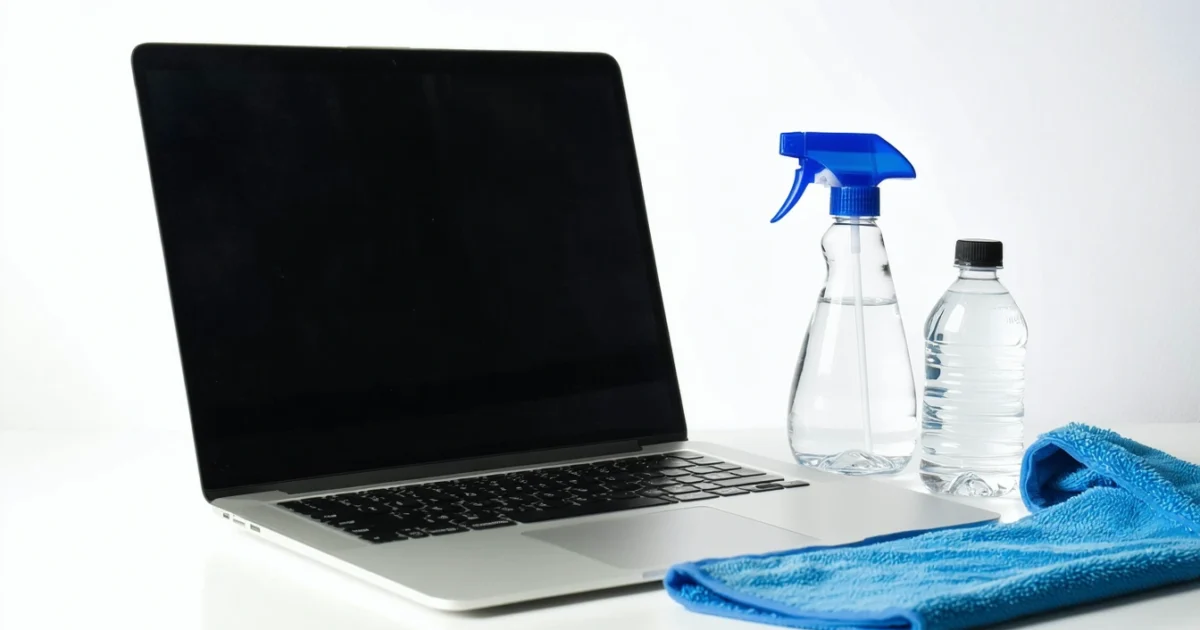
- Dampen the cloth, not the screen. Use a small amount of water on a clean part of the cloth, so it is barely damp and does not drip when squeezed. Distilled water is a good choice because it leaves no mineral spots, but clean tap water on a well-wrung cloth is acceptable if you have no distilled to hand. Never spray liquid directly on the display, because it can run into the bezel.
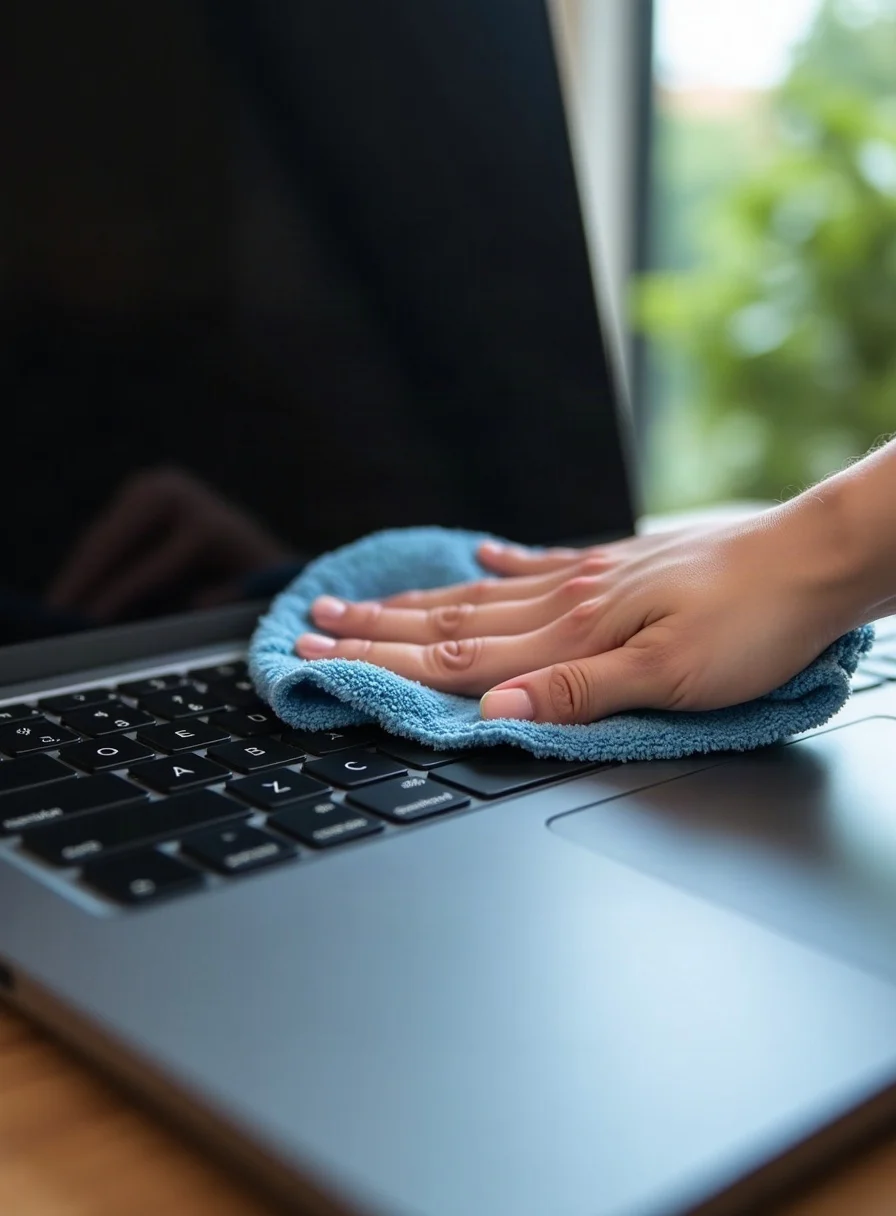
- Wipe lightly. Use straight, even strokes in one direction, or small gentle circles, with almost no pressure. Support the back of the lid with your other hand so the panel does not flex. Pressing hard can leave temporary bright patches or, in the worst case, damage the pixels.
- Use a screen-safe cleaner only if water is not enough. If marks remain, spray a product made for screens onto the cloth (again, not the screen) and wipe. An alcohol free screen cleaner is the safer choice on coated panels, while a general laptop screen cleaner spray is fine if the label says it is safe for LCD, LED and anti-glare displays and your manufacturer allows it.
- Buff dry. Follow with a dry part of the cloth, or a second dry cloth, using the same gentle strokes, until no streaks catch the light.
- Let it dry fully before you close the lid. Give it a few minutes, then check from the side at a low angle. Shutting a damp screen against the keyboard leaves a print of the keys.
As an Amazon Associate we earn from qualifying purchases.
That is the whole routine for dust, fingerprints and the odd smear. Keep a clean cloth in your laptop bag and the job takes under a minute.
The bezel, hinge, camera and trackpad
Once the screen is done, wipe the frame around it with the same damp cloth, still avoiding the gap where the display meets the bezel. A cotton bud lightly dampened with water can clean the edge of the camera lens, but never press on it. The hinge collects dust, so use a dry soft brush or short bursts of air. The palm rest and trackpad collect skin oils, which then transfer to the screen when you close the lid, so give them a wipe with a separate cloth. Keep this cloth away from the screen cloth, and let both dry before you shut the lid.
Where to get distilled water, and whether you need it
Distilled water is sold in supermarkets and DIY shops, usually for steam irons and car batteries, and a bottle lasts a long time at screen-cleaning volumes. It is better than tap water because it dries without mineral spots, which matters most on glossy screens. If you are in a hard water area and have none to hand, dry-wiping is better than using tap water, because the white spots are annoying to remove. Do not use water from a kettle or anything that has been scented.
Pre-moistened wipes
Individually wrapped screen wipes are convenient for a bag or desk drawer. Check the pack says it is suitable for LCD and LED screens and is free of alcohol if your manufacturer asks for that, then squeeze out any surplus liquid before use, because a wipe that is too wet gives you the same problem as a spray. Do not use general household or antibacterial wipes on a laptop, since many contain ingredients that can harm coatings.
If a mark is still there
Greasy fingerprints and smears
Oils need a little time and gentle friction, not force. Work from the outside edge of the mark inwards, so you do not spread it, and dab first before you wipe. Several light passes with a fresh, clean part of the cloth beat one hard scrub. If water does not move it, an alcohol free screen cleaner is the next step. Isopropyl alcohol is the point where manufacturers disagree: some, including Apple for its own displays, say a 70 percent isopropyl alcohol wipe is acceptable, while others advise against alcohol on certain coatings, so only use it if your maker’s guidance allows it, apply it to the cloth, and try a hidden corner first. Never use stronger concentrations or neat solvents.
Sticker residue, tape or something sticky
Do not pick at it with a nail or a blade. Hold a barely damp cloth against the patch for 30 to 60 seconds to soften it, then lift gently. If a trace of glue remains, ask your manufacturer for a safe product, or take the laptop to a repair shop. Strong adhesive removers and acetone can dissolve screen coatings and plastic bezels, so keep them well away. Spilled drinks that have dried leave sugary marks that usually yield to repeated damp wiping with plain water.
A screen protector or privacy filter
Protectors can tolerate a little more than a bare display, but glass and plastic ones differ, and plastic ones scratch more easily. Follow the instructions that came with it, keep liquid away from the edges so it does not seep underneath, and replace one that is scratched or peeling rather than scrubbing it. If you use one on your phone as well, our page on how to clean a screen protector goes into more detail.
Disinfecting
A laptop screen does not need disinfecting often, but if you share it, or have been ill, check the manufacturer’s guidance first. Some allow 70 percent isopropyl alcohol wipes, and many do not allow bleach. See our look at whether disinfectant wipes work for what they do and do not achieve, and wring any wipe out well so it is not wet.
What quietly ruins laptop screens
| Avoid | Why |
|---|---|
| Window and glass sprays, and ammonia-based cleaners | They can cloud or strip anti-glare and oil-repellent coatings |
| Bleach and kitchen or bathroom sprays | Too harsh for coatings and plastic bezels, and the fumes and residue are unnecessary |
| Acetone, nail polish remover and strong solvents | They can dissolve plastics and coatings |
| Paper towels, kitchen roll, tissues and toilet paper | They are rougher than they look and leave lint and fine scratches |
| Clothing, tea towels and cotton | They hold grit and can carry fabric softener residue |
| Scouring pads, melamine sponges and abrasive powders | They scratch and remove coatings |
| Spraying liquid straight on the screen | It runs into the bezel and the hinge area |
| Pressing hard, or cleaning with the laptop on | It can mark the panel, and a powered screen makes marks harder to see |
It is tempting to treat a laptop like a window. Our guide to cleaning windows without streaks has useful drying technique, but the products it recommends belong on glass, not on a coated display. The same goes for kitchen sprays: keep the two sets of kit apart.
How often, and how to make it less of a job
For most people, a dry-cloth dust once a week and a lightly damp wipe when marks appear is plenty. Over-cleaning wears coatings, so you gain nothing by wiping every day unless you share the machine, work in a dusty place or use the screen with greasy hands. Clean straight away after a spill or splash, after cooking near the laptop, and before you take photos or screen-share in good light.
- Wash and dry your hands before you use the laptop, and avoid pointing at the screen with a finger.
- Keep drinks and food away from the keyboard, since crumbs left on the keys press against the screen when you close the lid. A thin microfibre cloth between keyboard and screen in a bag can help, but check it will not force the lid.
- Close the lid when you are not using it, and store it in a case.
- Clean the keyboard as well, because keyboard grime ends up on the screen. Our guide to cleaning a keyboard covers it, and cleaning a laptop fan deals with the dust that builds inside.
- Do not rest anything on the closed lid, and do not carry it in a bag with sharp or hard objects against the screen.
If your laptop spends time on a kitchen table, remember that the room is full of grease and splashes. Our broader piece on keeping a home clean starts at the home page, but the short version for laptops is simple: keep them away from the cooker and the sink.
A final habit worth building is a quick look at the screen when it is switched off. Switched-off glass in side light shows dust, smears and fine scratches you cannot see when the display is lit, and it tells you whether the last clean actually worked. If you find new scratches, think about what touched the screen, such as a gritty cloth, a pen in the bag or a keyboard cover, and change that, because scratches cannot be wiped away. A thin microfibre screen-cloth sleeve or a clean cloth folded between screen and keys for travel can prevent a lot of marks.
When it is not dirt after all
Streaks that keep coming back
Streaks usually mean the cloth is dirty or oily, there was too much liquid, or a cleaner is drying on the surface. Wash the cloth, use less liquid, wipe with plain water on a fresh area, and buff dry straight away. Using different cloths for wet and dry avoids dragging moisture around.
Dust that clings straight after cleaning
Screens attract dust through static, especially in dry, heated rooms in winter. A barely damp cloth reduces it, and screen cleaners that mention anti-static properties can help. Keeping the lid closed when you are away is the simplest cure.
Bright patches, pressure marks or lines
Cloudy blotches or faint shadows that stay after the screen cools can be pressure marks from a closed lid with something trapped, or from hard rubbing. Most fade with time if you stop pressing on them. If you see coloured lines, black patches, spreading dark areas or dead pixels, that points to a hardware fault rather than dirt.
A haze that no cleaning shifts
Look at the screen at an angle with it switched off. Dirt looks like a film you can see on the surface. Damage under the glass looks the same from every angle. Stop cleaning at that point, check your warranty or manufacturer support page, and take it to an authorised repairer instead of trying stronger products, which can make things worse.
A spill on the keyboard or screen
Power the laptop off straight away and unplug it, turn it so liquid runs away from the screen, dab surface liquid with a dry cloth and leave it to dry. Do not use a hairdryer, which can push moisture further inside. If liquid has got in, contact the manufacturer or a repairer promptly.
Laptop screen questions
Can I use Windex or other household glass cleaner?
No. Glass sprays often contain ammonia or other solvents that can cloud anti-glare and oil-repellent coatings. Use a dry cloth, then a lightly dampened one, and a cleaner that is made for screens only if water is not enough.
Should I turn the laptop off first?
Yes. It stops accidental clicks, reduces any risk from moisture and makes dirt easier to see against a black screen. Leave it to cool a little if it has been running hot, since cleaner dries faster and streaks on a warm surface.
Is it safe to spray cleaner directly on the screen?
It is not worth the risk. Liquid can run into the bezel and the hinge area, and cannot easily be removed. Put a small amount of cleaner on the cloth, wring it out until it is barely damp, and wipe the screen with that.
Can I use paper towels or tissues?
Avoid them. They feel soft but are made of wood fibres that can leave fine scratches and lint, and kitchen roll is worse. A clean microfibre cloth costs very little and is a better tool.
Can I use the same cloth for the keyboard and the screen?
It is better not to. Keyboards collect oil, crumbs and grit that you do not want rubbed across the display. Keep one cloth for the screen only, and wash it regularly without fabric softener.
Is isopropyl alcohol safe on a laptop screen?
It depends on the manufacturer. Some say a 70 percent isopropyl alcohol wipe is acceptable, and others advise against it on coated displays. Check your support page, apply it only to the cloth, and test a corner. Do not use stronger or neat solvents.